
Welcome Series Automation
Overview
The Welcome Series automation helps you create a strong first impression with new subscribers. When a contact joins your selected list, they are automatically enrolled in an onboarding journey that introduces your brand, highlights key products or services, and encourages early engagement.
This automated workflow ensures every new subscriber receives a consistent and timely welcome experience, helping improve activation and long-term customer engagement.
Key Benefits
- Build trust from day one
- Introduce your products and services
- Increase subscriber engagement
- Improve customer activation
- Deliver a consistent onboarding experience
- Automate customer onboarding at scale
Workflow Overview
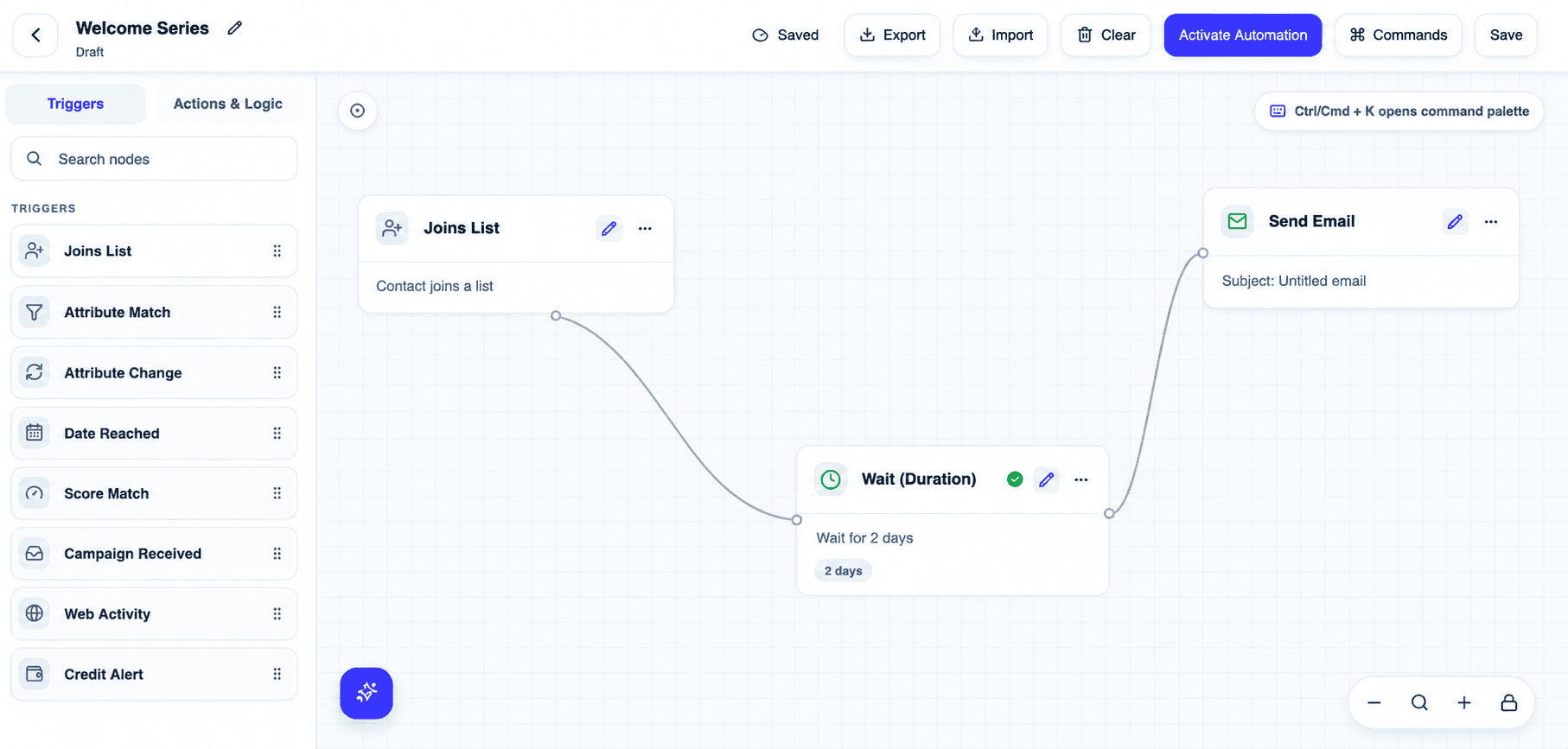
The Welcome Series automation consists of three stages:
Stage 01: Joins List
Automatically enroll subscribers when they join a selected list.
Stage 02: Wait (Duration)
Pause the journey for a specified period before continuing to the next step.
Stage 03: Send Email
Deliver a personalized welcome email to new subscribers.
Example Workflow
Joins List → Wait (2 Days) → Send Email
Stage 01: Joins List
Overview
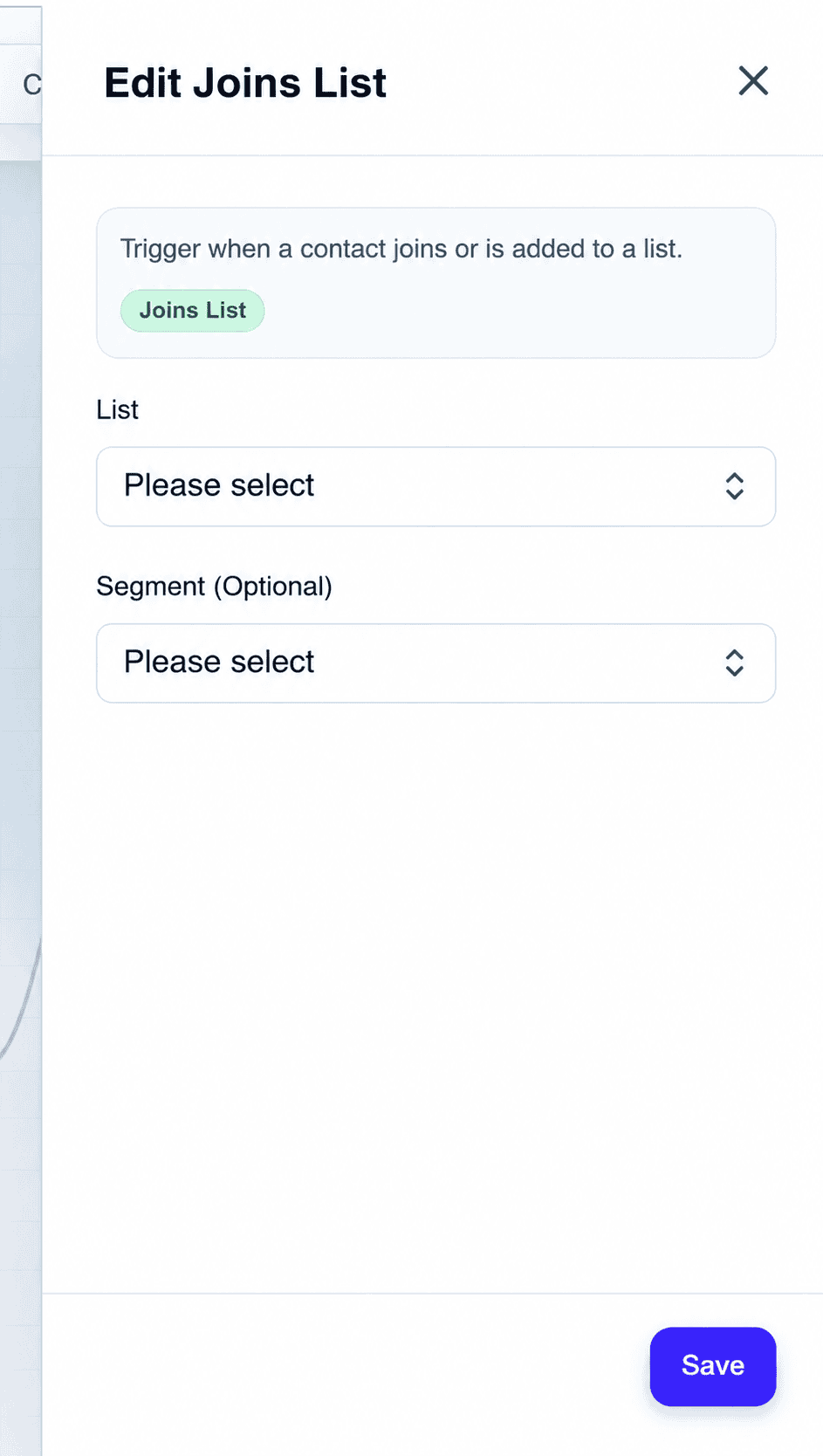
The Joins List trigger initiates the automation whenever a contact is added to a selected list. This ensures that every eligible subscriber automatically enters the Welcome Series journey.
Configuration
| Setting | Description |
| List | The list that triggers the automation when a contact joins. |
| Segment (Optional) | Limit entry to subscribers that match a specific segment within the selected list. |
Example Configuration
| Setting | Value |
| Selected List | Test Subscribers |
| Selected Segment (Optional) | Premium Users |
Metrics
Subscribers Entered
The total number of subscribers who entered the automation through this trigger.
Subscribers Progressed
The number of subscribers who successfully moved to the next stage of the journey.
In Queue
Subscribers are currently waiting to be processed by the automation.
Entry Failures
Subscribers who could not enter the automation due to list conditions, duplicate enrollments, suppression rules, validation failures, or other restrictions.
Stage 02: Wait (Duration)
Overview
The Wait (Duration) action pauses subscribers within the automation for a specified period before allowing them to continue to the next step.
This delay helps create a more natural customer experience by spacing out communications and preventing subscribers from receiving multiple messages too quickly.
Configuration
Wait (Duration)
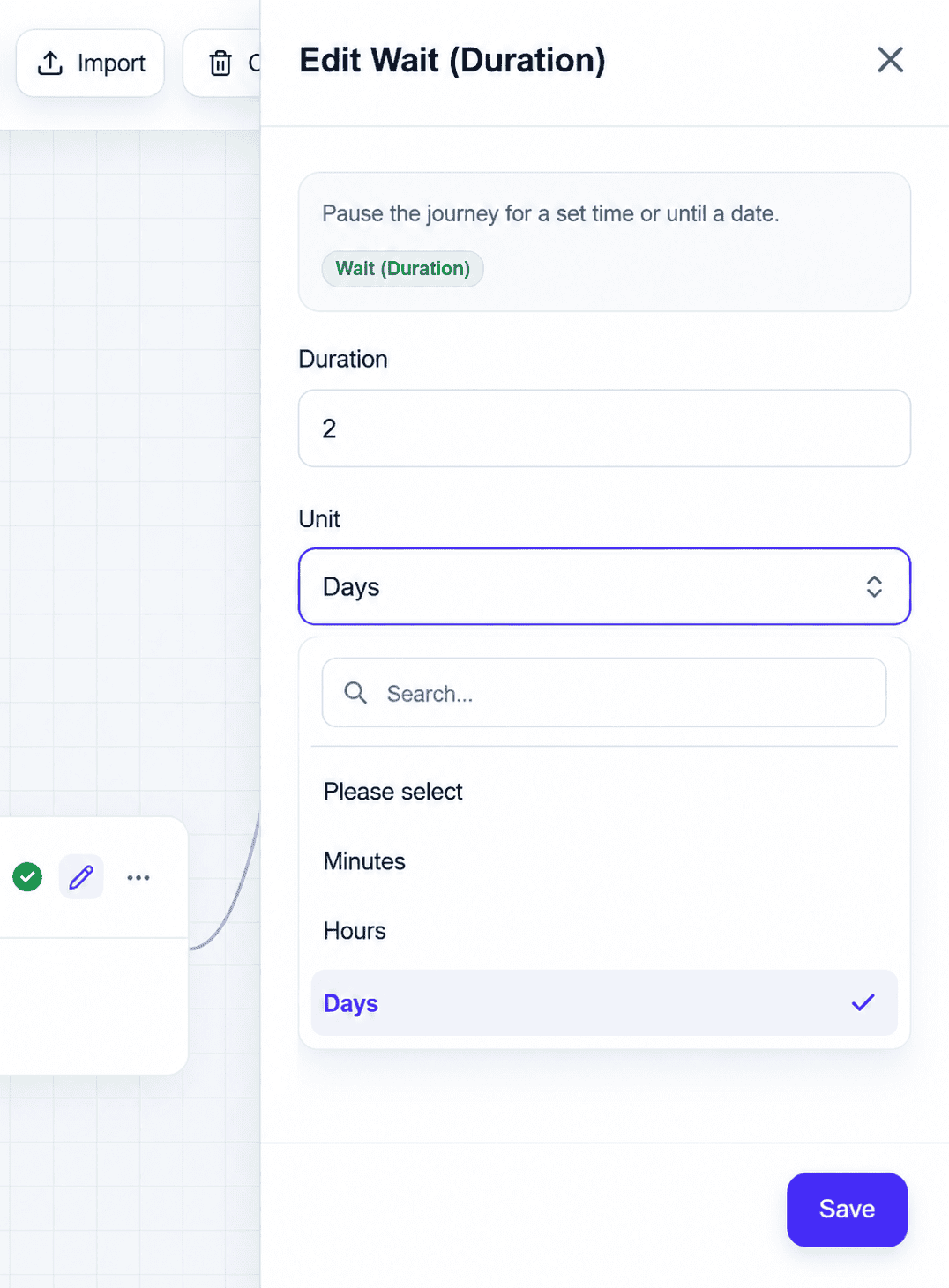
Description: Pause the journey for a set amount of time before proceeding to the next step.
| Setting | Description |
| Duration | The length of time subscribers remain in the wait step. |
| Unit | Minutes, Hours, or Days |
Example Configuration
| Setting | Value |
| Duration | 2 |
| Unit | Days |
Metrics
Subscribers Waiting
The total number of subscribers who entered this wait step.
Wait Completed
Subscribers who successfully completed the wait period and advanced to the next stage.
Currently Waiting
Subscribers who are actively paused within the wait period.
Expired Subscribers
Subscribers who exited the automation before completing the wait period.
Stage 03: Send Email
Overview
The Send Email action sends a welcome message to subscribers enrolled in the automation journey.
Use this step to introduce your brand, set expectations, provide valuable resources, and encourage subscribers to take their next action.
Configuration
Send Email
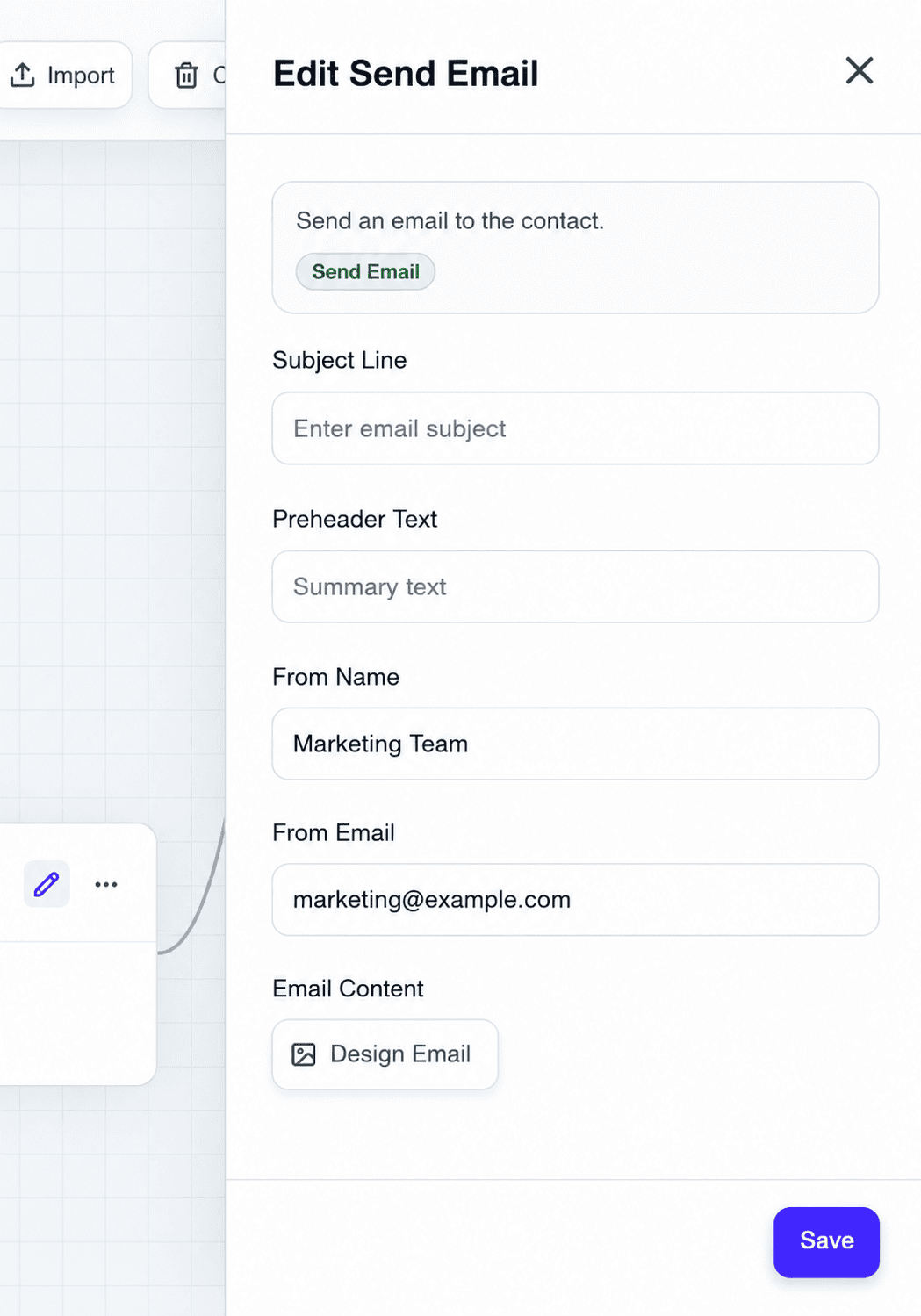
Description: Send an email to the contact.
| Setting | Description |
| Subject Line | The email subject displayed in the recipient’s inbox. |
| Preheader Text | Preview text shown after the subject line in most email clients. |
| From Name | The sender name displayed to recipients. |
| From Email | The sender email address used to deliver the message. |
| Email Content | The email design, copy, and call-to-action content. |
Example Configuration
| Setting | Value |
| Subject Line | Welcome! We’re glad you’re here. |
| Preheader Text | Get started and discover what we have to offer. |
| From Name | Customer Success Team |
| From Email | support@yourcompany.com |
Delivery Metrics
Emails Sent
The total number of emails processed for delivery.
Emails Delivered
Emails successfully accepted by recipient mail servers.
Unique Opens
The number of unique subscribers who opened the email at least once.
Unique Clicks
The number of unique subscribers who clicked at least one tracked link within the email.
Unsubscribes
Subscribers who opted out after receiving the email.
Spam Complaints
Recipients who marked the email as spam.
Bounces
Bounces occur when an email cannot be delivered to a recipient.
Monitoring Automation Performance
Use the Journey Overview dashboard to monitor workflow performance and identify opportunities for optimization.
Recommended Metrics to Monitor
- Subscriber progression rate
- Entry failure rate
- Wait completion rate
- Email delivery rate
- Open rate
- Click-through rate
- Bounce rate
- Unsubscribe rate
- Spam complaint rate
- Journey completion rate
Regularly reviewing these metrics helps improve engagement, deliverability, customer onboarding performance, and overall automation effectiveness.
Troubleshooting
Low Open Rates
Possible Causes
- Weak or unclear subject lines
- Poor sender reputation
- Sending at suboptimal times
- Irrelevant content
Recommended Actions
- Test alternative subject lines.
- Optimize send timing.
- Improve audience targeting.
- Verify sender authentication.
High Bounce Rates
Possible Causes
- Invalid email addresses
- Outdated subscriber lists
- Domain or DNS configuration issues
Recommended Actions
- Clean subscriber lists regularly.
- Remove hard bounced contacts.
- Verify sender domain authentication.
High Unsubscribe Rates
Possible Causes
- Irrelevant content
- Excessive email frequency
- Misaligned subscriber expectations
Recommended Actions
- Review onboarding messaging.
- Reduce sending frequency.
- Ensure signup forms clearly communicate expectations.
High Spam Complaints
Possible Causes
- Subscribers did not expect the email
- Misleading subject lines
- Lack of clear unsubscribe options
Recommended Actions
- Use permission-based list acquisition.
- Ensure branding is recognizable.
- Include a visible unsubscribe link.
- Send content relevant to subscriber interests.
Regular monitoring and optimization will help improve engagement, deliverability, and the overall success of your Welcome Series automation.


